

.png?width=274&height=200&scale=canvas)


.png?width=500?width=274&height=200&scale=canvas)

.png?width=274&height=200&scale=canvas)

.png?width=274&height=200&scale=canvas)

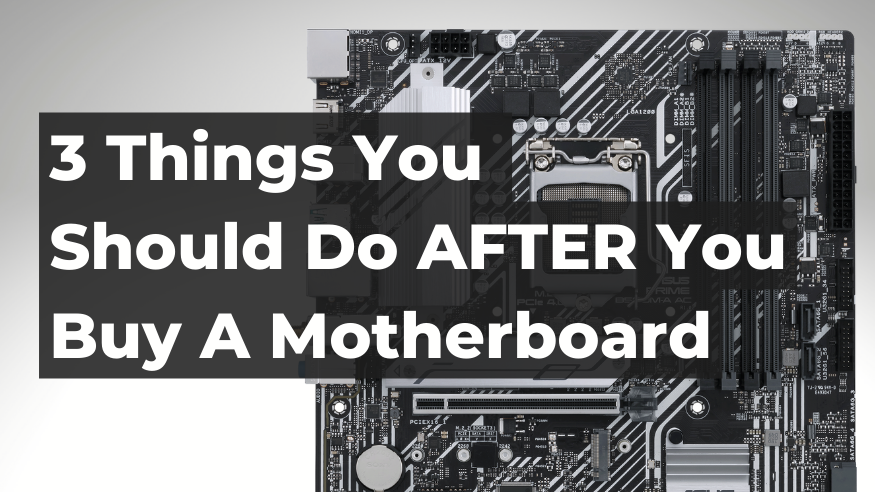
Upgrading your motherboard means you can enjoy the new connectivity, performance increase, and access to next generation components. Unfortunately, things don't always run smoothly if you forget the important steps AFTER you buy your new motherboard. We have covered them here so you don't run into any issues!
1. You must activate a new Windows license
When you make significant hardware changes, such as replacing your motherboard, your previous Windows license will no longer be valid. Microsoft will no longer be able to find a license matching your hardware, so activating a new Windows license is your first step.
With every new motherboard we sell at CCL, we offer an easy way to activate a Windows 11 license, with a DVD being shipped to you via Next Day delivery. If you don't have an optical DVD drive, that's fine - the license is supplied on a card, so there's no need to use the DVD. You can opt for the very quick & simple USB installation instead.
The process is very simple.
Step 1: On another device, go to Microsoft's download page for Windows 11 media: https://www.microsoft.com/software-download/windows11/
Step 2: Under "Create Windows 11 Installation Media", click the Download button.
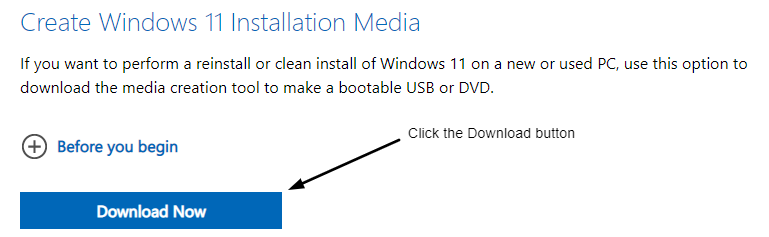
Download Windows 11
Step 3: After downloading, run the media creation tool. You need to be an administrator to run this tool. If you agree to the license terms, select Accept. On the What do you want to do? page, select Create installation media for another PC, and click Next. This will create a bootable Windows USB.
Select the language, edition, and architecture (64-bit) for Windows 11. Select USB flash drive as the media: Attach a blank USB flash drive with at least 8GB of space. Any content on the flash drive will be deleted.
Step 4: When your Windows license arrives, simply insert your bootable Windows USB in your new PC, and follow the instructions, entering your license code when prompted. That's it!
Troubleshooting:
USB won't boot: If you insert your USB stick and your PC will not boot from it, this will be due to your BIOS or UEFI not having USB as an option in the boot sequence. To change this, simply access your BIOS and look for an option that says "Boot Order", "Boot" or "Boot Sequence" (or similar). Change the first option to the USB.
Examples:
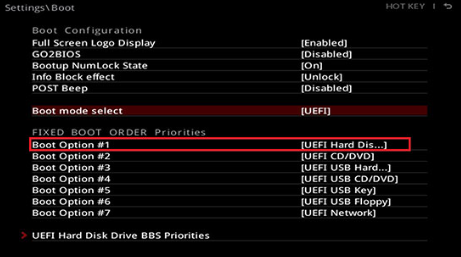
CAPTION
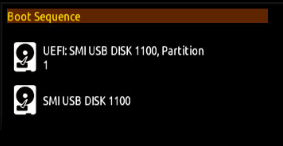
Gigabyte Aorus Boot Sequence
2. Update your motherboard drivers
It is very important that your motherboard has the latest firmware updates installed. This is a very simple process, and is often handled by the software bundled with your motherboard.
If you did not have any software automatically installed when you installed the motherboard, check for a DVD in the motherboard box. If you don't have a DVD, simply visit the manufacturer's website and install the latest support software:
Motherboard manufacturers - software downloads:
- ASRock: Support
- ASUS: Support
- Acer: Support
- Dell: Support
- ECS: Support
- Gigabyte: Support
- HP: Support
- Lenovo: Support
- MSI: Support
- Microsoft Surface Tablets: Learning & Support
- Samsung: Support
- Toshiba: Support
- Zotac: Support
On the manufacturer's website, you will find links to download software, drivers and more. Select the software you need and install it.
3. Check your components in BIOS/UEFI
After an install it is always recommended that you check your RAM and other components are reporting the correct speeds, voltages and temperatures. To do this, simply follow this guide in our YouTube video:
What Next?
If you have any problems at all, remember you can call us or email us for support. Our team is always happy to help you with new installations, Windows 11 activations and more.
Click here to get support or give us a call: Tel. 01274 471206 (09:00 and 17:30, Monday - Friday).